
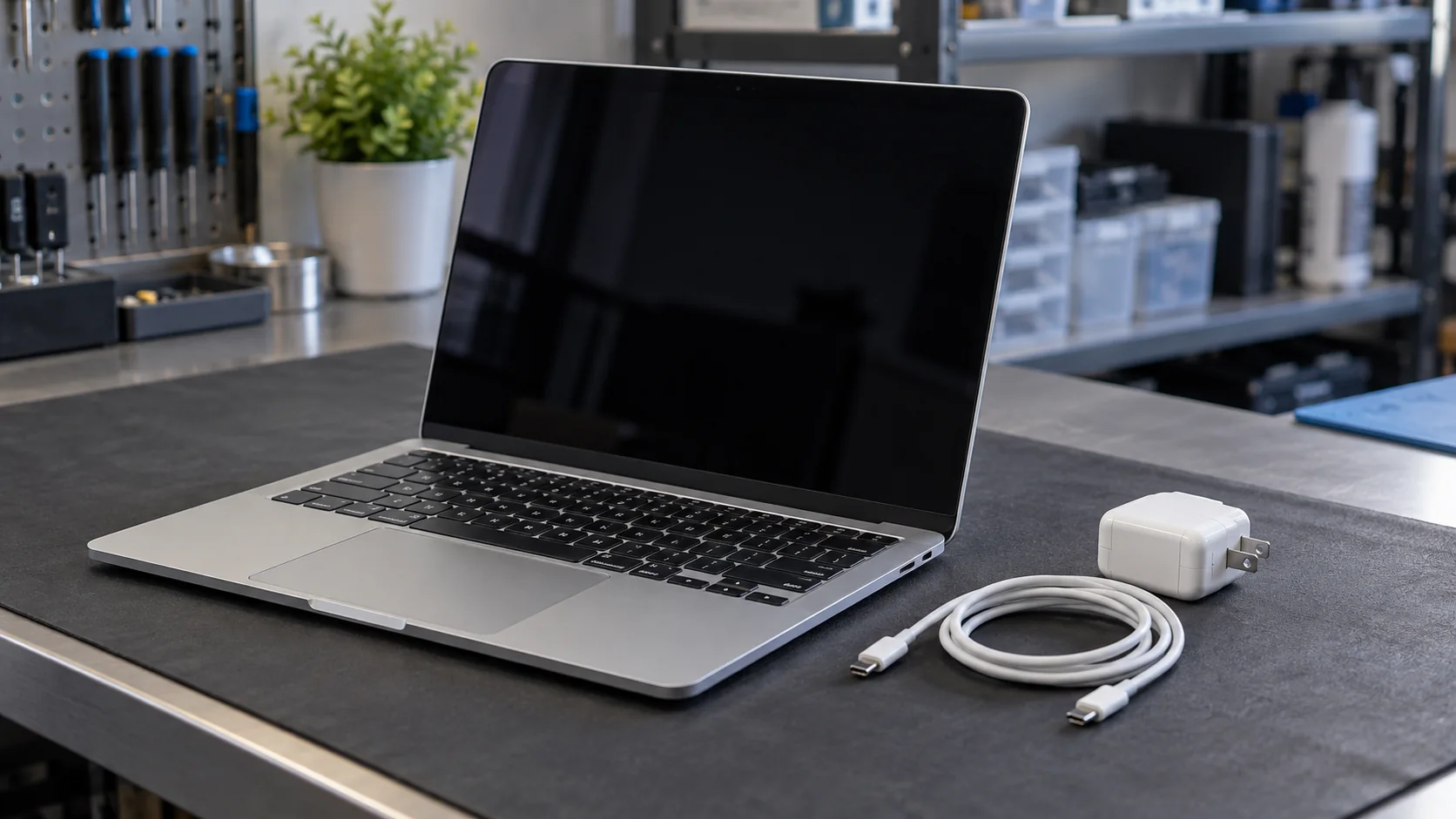
Decide what "won't turn on" means
Start with what the MacBook does, not a guessed failed part. Record the exact model or year if known, whether it uses Apple silicon or Intel, the last time it worked, the last successful charge, and any recent liquid, drop, repair, update, or data backup.
| What you observe | Useful description | Next route |
|---|---|---|
| No sound, light, fan, trackpad response, screen image, or charging sign | Possible no-power or charging-path problem | Run the single safe power check below. |
| Startup sound, fan, keyboard light, pointer, or other response with no usable picture | The Mac shows power but the screen is blank | Use Apple's blank-screen steps instead of repeating power checks. |
| Apple logo, question mark, prohibited symbol, folder, or recovery screen | The Mac has started far enough to show a startup condition | Follow the instruction for that exact symbol. |
If the screen is lit or the Mac reacts, do not treat it as true no power. A separate computer power checklist can help you preserve the observations. For a system that charges intermittently, use the laptop charging guide.
Stop first after liquid, swelling, heat, or damage
Do not connect power after known liquid exposure, a damaged or wet port, battery swelling, a lifted case, smoke, sparks, a burnt smell, or unusual heat. Leave the MacBook off. Do not use rice, heat, compressed air, or a charging cable to test whether it recovered.
Use the MacBook liquid-damage steps after a spill. If the case is distorted or the battery may be swollen, avoid pressure on the computer and ask the manufacturer or a qualified repair provider how to transport it safely.
Check one compatible power path
Inspect the cable, adapter, and MacBook port in good light. Stop if a connector is bent, wet, burnt, loose, or visibly damaged. Use a cable and adapter that Apple identifies as compatible with the exact MacBook. A connector that fits does not prove that the charger can supply the required power.
Connect the adapter directly to one known working wall outlet. Avoid an unknown power strip, dock, display, battery bank, or hub for this check. Seat the connector with normal straight pressure. Do not wiggle it, hold it at an angle, or force it into a port.
Allow a depleted battery time on the compatible charger. Note any charging sound, screen symbol, warmth that remains mild and even, or change in the trackpad. Stop at unusual heat, odor, smoke, sparks, or repeated connection sounds.
Disconnect accessories and try one controlled start
Disconnect phones, drives, displays, hubs, docks, printers, memory cards, and other accessories. Leave only the compatible power adapter if the battery may be empty.
Apple's current no-power guidance says to hold the power button for about 10 seconds, then press it normally. On a laptop with Touch ID, the Touch ID button is also the power button. Perform that sequence once and wait for a response.
If the Mac starts, reconnect accessories one at a time only after the system is stable and important data is backed up. If the screen remains blank but another startup sign appears, switch to Apple's blank-screen guidance. Do not keep repeating the long press.
Use model-specific resets carefully
Apple's current guidance limits an SMC reset to certain Intel-based Mac computers. Do not use a memorized key sequence until the exact model and processor are known and Apple's instructions say that reset applies. Apple silicon Macs use a different startup design.
Do not attempt a firmware revive, restore, macOS reinstall, disk erase, battery disconnect, or internal cable reseat as a general no-power test. Those actions can affect data or turn one symptom into several.
Choose the next handoff from the result
A MacBook that starts after the controlled check still needs a current backup and attention to any charging or accessory pattern. A MacBook that shows a blank screen or startup symbol belongs on that specific Apple support path. A MacBook with no response after one safe charger and power-button check needs model-specific support or inspection.
Bring the exact model, processor family if known, charger wattage, cable type, every sign of power, damage or liquid history, recent update or repair history, and backup status. Those facts help a technician preserve the right options without declaring the battery, charging port, display, or board failed before testing.
Budget Repair's Mac repair page explains local service in Lawrence. Use the quote form to ask whether your exact MacBook can be evaluated. Inspection must come before a confirmed fault, price, turnaround time, data outcome, or repair result.
Editorial sources
Checked October 12, 2026 against Apple's guides for a Mac that does not turn on, a Mac that does not charge, a blank Mac screen, and Apple Diagnostics. Apple supplies the compatible-power, accessory, power-button, blank-screen, Intel SMC, diagnostic, and service guidance. Current search results were reviewed to check how readers distinguish no power from a black screen. They do not establish a common failed part or success rate. Budget Repair added the observation table, safety stops, recordkeeping, internal routes, and local service boundary. Budget Repair is not affiliated with Apple.