
Record what the iPhone still does
Note the model if you know it, the last normal use, the last charge level, and any recent drop, liquid exposure, repair, or update. Then press the Side or top button once and watch for a response.
| Observation | What it tells you | Next route |
|---|---|---|
| No light, sound, vibration, icon, ring, warmth, or computer detection | The phone may be deeply discharged, frozen, or unable to use the charging path. | Continue with one controlled power check. |
| The phone rings, vibrates, makes sounds, or appears on an already trusted computer behind a dark display | The phone has some power. This is not complete no response. | Use the black-screen guide. |
| A low-battery icon, Apple logo, startup screen, or other display appears | The state has changed and the phone has responded. | Stop repeating tests and follow the exact screen. |
A dark, silent iPhone does not prove that the battery, charging port, display, button, or board has failed. Keep those as possibilities until model-specific testing identifies the fault.
Check for liquid, swelling, heat, and damage
Inspect the phone, cable, adapter, and connector in good light. Do not connect power after a spill or when you see moisture, corrosion, burnt areas, bent contacts, cracked equipment, a lifted screen or back, or a case that no longer sits flat.
If the battery area is swollen or unusually hot, stop using the phone. Do not press the case closed. A phone with recent liquid exposure belongs on the water-damage path, not a charging test.
Use one compatible power path
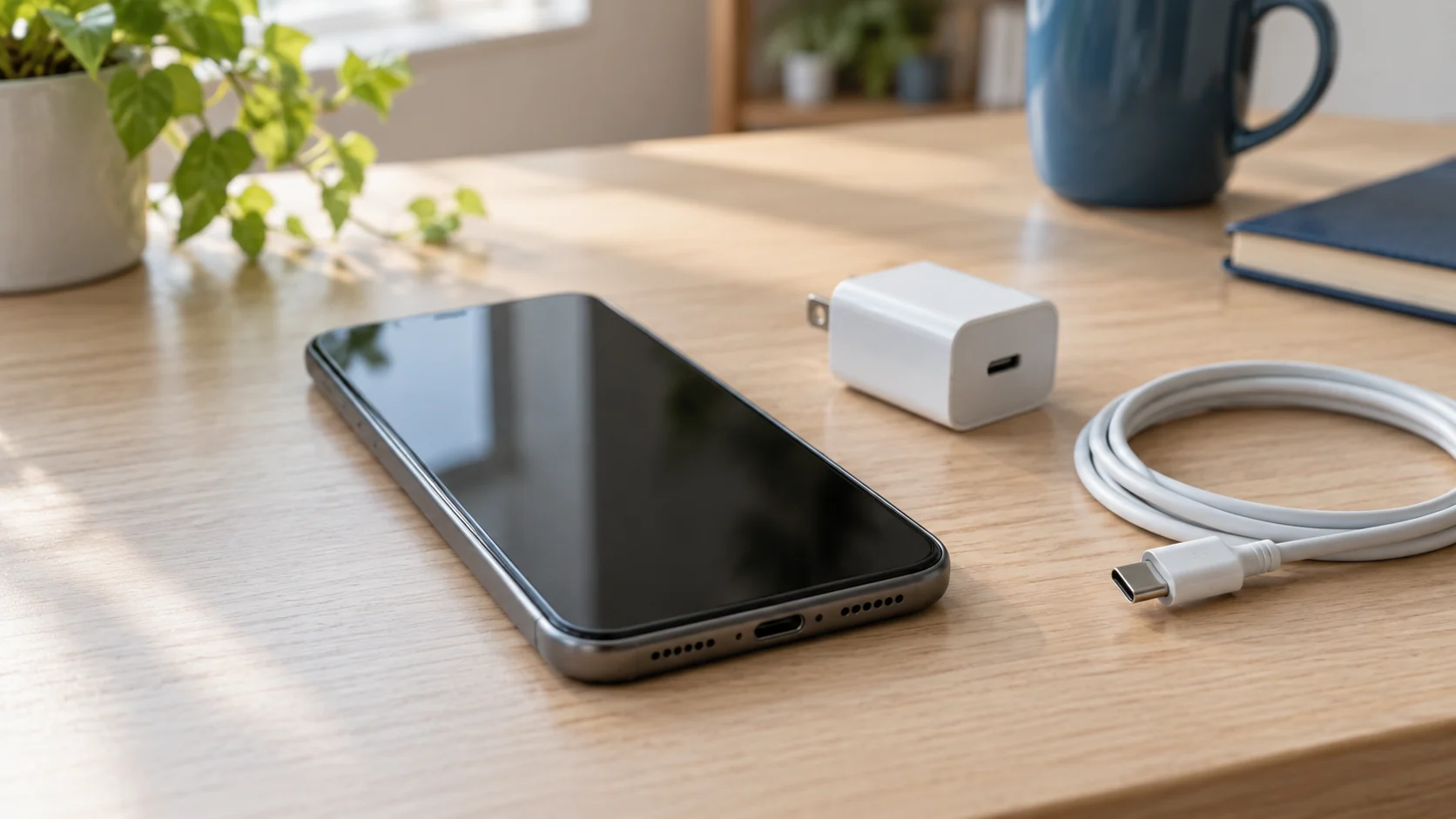
For a dry, externally undamaged iPhone, connect one known-good compatible cable and adapter directly to a working wall outlet. Use normal straight pressure. Do not force or wiggle the connector.
Apple says an iPhone that still does not start should charge for one hour before another attempt. Leave the connection alone and record the result. Repeatedly reconnecting the cable makes the test harder to read.
If your charger, cable, or port is the main concern, use the iPhone charging-port guide for the symptom boundary. This no-power guide does not include port-cleaning instructions.
Call the phone once
After the charging interval, call the iPhone from another phone once. A ring, vibration, sound, or notification with no picture points toward a powered phone with a display problem. Move to the black-screen path and avoid repeated restart attempts.
If the phone appears on a computer that already trusted it, record that result. Do not choose Update, Restore, recovery mode, or DFU mode from this guide. Those actions answer a different question and can put data at risk.
Use the restart sequence for the model
Apple uses different forced-restart sequences for Face ID models, iPhone 7, and iPhone 6s or earlier. If you are unsure which iPhone you have, check the box, purchase record, carrier account, or Apple Account device list. Do not guess from button placement alone.
For an iPhone with Face ID, press and quickly release Volume up, press and quickly release Volume down, then hold the Side button until the Apple logo appears. For iPhone 7 or 7 Plus, hold the Side button and Volume down together. For iPhone 6s or earlier, hold the Home button and Side or top button together. Stop after one correct attempt.
A model-correct restart does not erase the phone. Recovery, DFU, restore, and erase actions are not part of this check.
Choose the next step from the result
If the iPhone starts, back it up when possible and watch for a repeat. A phone that responds only through sound, vibration, or computer detection needs the display path. A phone that stays completely unresponsive after one compatible charging path and one correct restart needs Apple support or a physical diagnostic.
Write down the model, charger and cable used, the result after one hour, every sound or screen change, the restart sequence, liquid or impact history, and whether the data matters. That record is more useful than a guessed part.
Budget Repair's iPhone repair page describes local service in Lawrence. Use the quote form to ask whether your exact model and symptom can be inspected. A failed part, price, turnaround time, repair result, and data outcome cannot be confirmed before inspection.
Editorial sources
Checked October 14, 2026 against Apple's current guidance for an iPhone that will not turn on or has a black screen, an iPhone that will not charge, safe iPhone charging, iPhone service, and service preparation. Apple supplies the model-specific restart sequences, one-hour charging interval, liquid warning, inspection boundary, and backup advice. The review also checked current search results and recent reports for the words owners use when a phone stays black after a full discharge. Those reports do not prove a common defect, failed part, or repair success rate. Budget Repair added the response table, safety stops, internal routes, evidence record, and local service boundary. Budget Repair is not affiliated with Apple.