
Record the exact failure first
Write down the controller model, Xbox console or computer, connection method, headset model, and what fails. No sound, no microphone input, no headset detection, sound on one side, crackling, and movement-sensitive cutouts are different observations. Keep them separate.
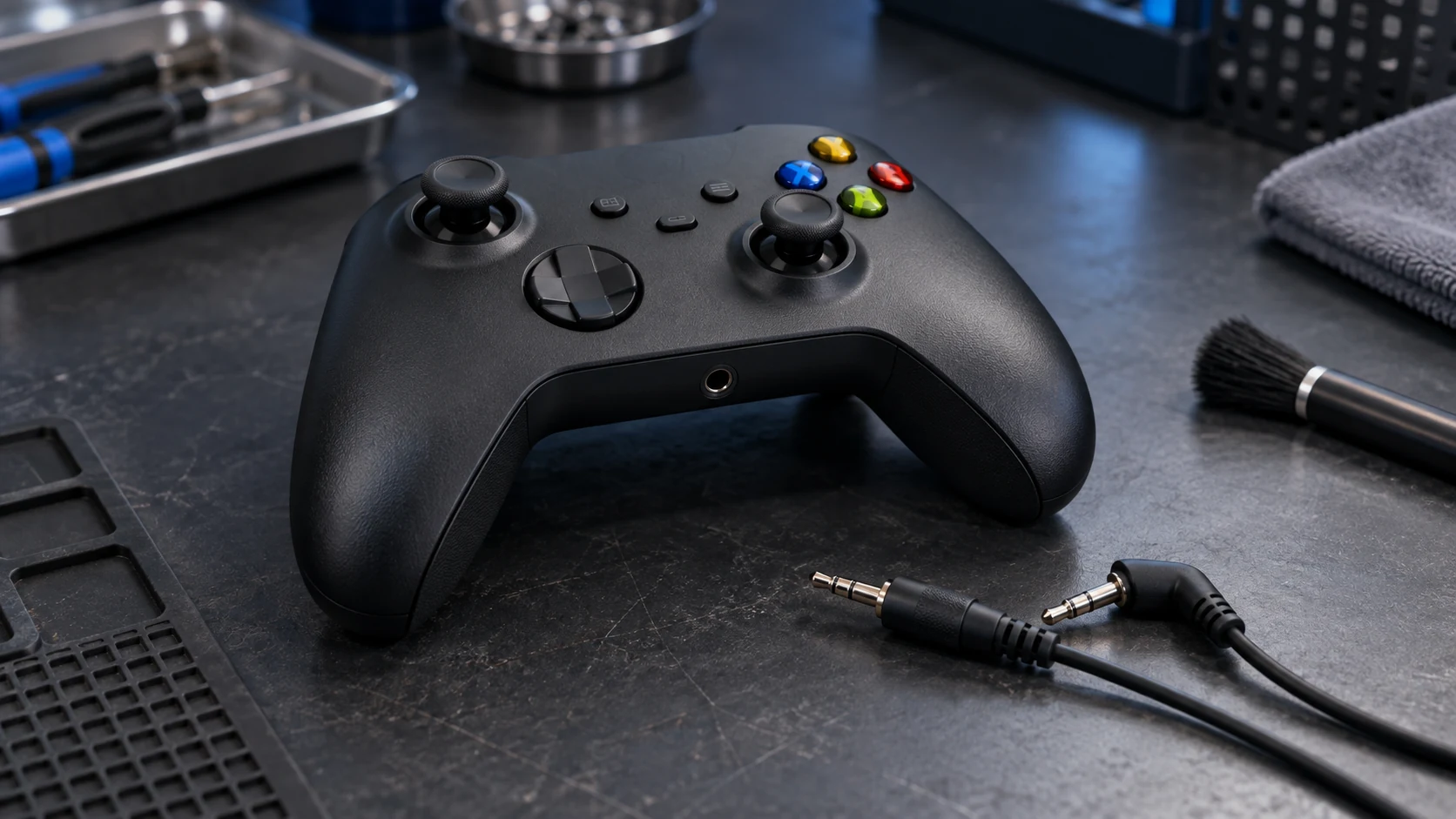
This guide covers a compatible wired headset connected through a controller's 3.5 mm jack. Xbox says the current Xbox Wireless Controller accepts a compatible headset through that jack. A plug that fits does not prove that every headset, adapter, controller, computer connection, or game exposes the same audio controls.
If buttons or sticks also fail, use the Xbox controller button guide. If the headset problem is on a PlayStation controller, use the separate PS5 controller headset guide. Those comparisons use different vendor controls and update paths.
Run a two-headset comparison
Test the original headset on another compatible device. Use a low listening level. Check left and right sound, then the microphone if that device supports the same plug. Record whether the headset works fully, partly, or not at all.
Next, connect one known-good compatible 3.5 mm headset to the affected controller. Seat the plug with normal straight pressure. Do not twist it or lean it sideways. Record whether Xbox detects the headset and whether sound, microphone input, or both work.
| Comparison result | What it supports | What it does not prove |
|---|---|---|
| The original headset fails on another compatible device | The headset or cable needs its own support path. | It does not prove the controller is healthy. |
| Both headsets work elsewhere but fail on one controller | The controller becomes the main service candidate. | It does not name the jack, connector, or board as failed. |
| Sound works but the microphone does not | Mute, input support, headset compatibility, or part of the connection remains in scope. | It does not prove that one microphone contact is damaged. |
| The result changes during ordinary controller movement | The behavior is worth recording for support or inspection. | It does not justify bending the plug or forcing the jack. |
If another compatible Xbox controller is already available, test the same known-good headset with the same console and settings. A clean result on the second controller strengthens the one-controller finding. It still does not identify an internal part.
Check controls before changing the console
Inspect the headset cable and plug in room light. Stop if the cable is split, the plug is bent, or metal is exposed. Then check the headset's own mute and volume controls. The current Xbox Stereo Headset, for example, has an on-ear volume control and a microphone mute switch. Other headsets place those controls on the cable or ear cup.
Use the supported Xbox audio controls for the console, app, or device you are testing. Confirm the selected output, headset volume, chat balance, and microphone mute state when those controls are available. Change one setting at a time and repeat the same short test. Do not raise the volume sharply to chase missing sound.
Xbox also lists audio customization through the Xbox Accessories app for supported Xbox and Windows devices. Use only controls shown for the connected controller and headset. Do not treat a missing option on an unsupported connection as proof of a hardware failure.
Update the controller through Xbox
Use Xbox's supported controller-update route. Keep the console or computer on stable power and let the update finish. Do not disconnect the controller during the update, install unofficial firmware, or use an unknown updater.
After the update, reconnect the same known-good headset and repeat the same low-volume sound and microphone test once. Keep the console, controller, headset, connection method, and test content unchanged. If several variables change together, the result will not tell you what mattered.
An update that restores sound is useful evidence. An update that changes nothing does not prove the jack is physically damaged. Controller software, headset compatibility, settings, the plug, the jack, a connector, or another internal path can produce similar symptoms.
Stop when the test becomes unsafe
Remove the headset at once after a loud pop, painful volume, strong buzzing, unusual heat, smoke, or a burnt smell. Turn off and disconnect the controller before checking the exterior. Stop after liquid exposure, corrosion, a cracked case, impact damage, or an opening that no longer holds the plug normally.
Do not add liquid cleaner, adhesive, fibers, compressed air, or a tool to the jack. Do not scrape the contacts. Do not open the controller, remove the jack, solder a connection, bypass a connector, or keep rocking the plug until sound returns. Those actions can add damage and erase the clean comparison a technician needs.
Choose the right handoff
A headset that fails on another compatible device belongs with the headset maker. A problem that clears after correcting mute, volume, or a supported Xbox audio control does not support controller repair. A failure limited to one controller after a two-headset comparison and supported controller update supports Xbox help or physical inspection.
Bring the controller model, console or computer, connection method, headset models, detection state, sound result, microphone result, second-controller result when available, update result, and any liquid or impact history. That record is more useful than naming a replacement part before inspection.
Budget Repair's game console repair page explains local hardware service in Lawrence. Use the contact page to ask whether your exact controller can be evaluated. Inspection comes before a confirmed part, price, turnaround time, warranty decision, or repair result.
Editorial sources
Checked October 11, 2026 against Xbox's Xbox Wireless Controller specifications, Xbox Stereo Headset specifications, and controller update support route. Xbox supplies the 3.5 mm connection, headset control, audio customization, and supported update facts. Current search results and recent symptom reports were reviewed to check reader wording. Those reports do not prove a common cause, failure rate, or repair. Budget Repair added the two-headset comparison, result limits, safety stops, internal routing, and local inspection boundary. Budget Repair is not affiliated with Microsoft or Xbox.