
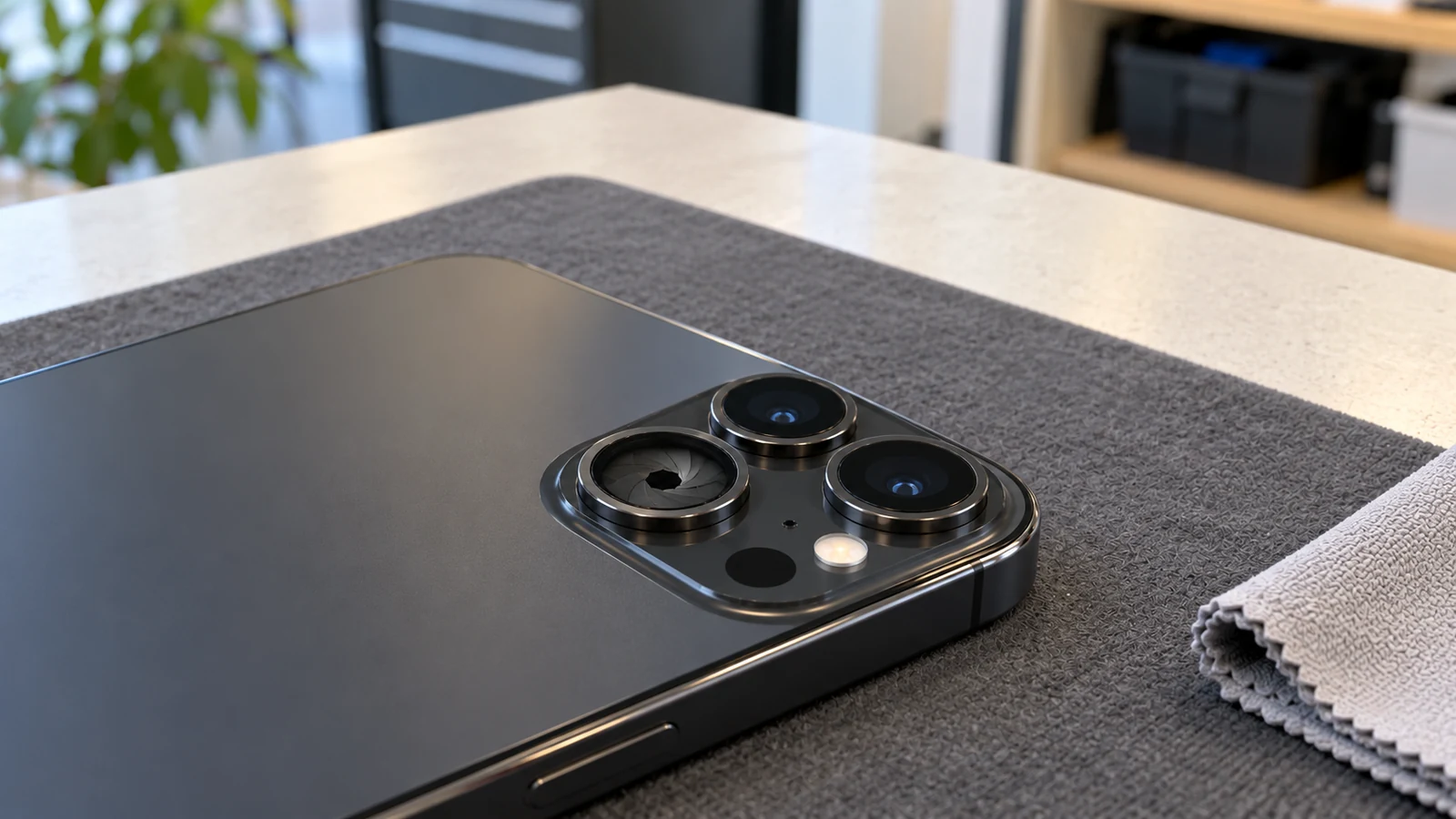
Confirm the model, lens, and Camera mode
Apple limits manual Lens Aperture to iPhone 18 Pro and iPhone 18 Pro Max. The control belongs to the 48MP Fusion Main camera. It does not turn a fixed-aperture camera on another iPhone into a variable one.
Open Apple's Camera app and select the Main camera. Apple documents manual aperture in Photo, Video, Cinematic, Slo-mo, and Time-Lapse. A missing control on the Ultra Wide, Telephoto, front camera, or an unsupported third-party app is not proof that the mechanism failed.
Keep Portrait depth controls separate. Portrait and Cinematic effects can change simulated depth without proving that the physical iris moved. This guide is about the Main camera's Lens Aperture control.
Identify what "not changing" means
A missing control points first to the model, active camera, mode, and toolbar. A value that returns to Auto points to Camera settings. A value that stays selected but looks unchanged needs a controlled photo comparison. A saved file that reports an unexpected aperture value is a metadata question until a repeatable camera test shows more.
Do not rely on screen brightness alone. The camera can change exposure through shutter speed, sensor gain, and image processing. A wider or narrower aperture may be easier to see in background blur, point-light shape, or the physical lens than in overall brightness.
Run one two-value Main-camera test
Choose a nearby subject with a more distant background. Set the phone on a steady surface and keep the framing, focus point, lighting, and subject still. Select f/1.48 and save one frame. Change only Lens Aperture to f/4 and save a second frame.
Compare the saved files at the same size. Look for a change in background blur and the shape of small point lights. If you can safely see the Main lens from an angle, the six-blade opening should be smaller at f/4. Do not put an object near the lens or use a magnet to make the movement easier to see.
One clean comparison is more useful than a burst of tests with changing light and distance. Keep both originals if the result remains unclear.
Check Preserve Settings when the value resets
Open Settings, choose Camera, then Preserve Settings. Check the Lens Aperture option. This setting controls whether Camera keeps the selected value after the app closes.
If Camera returns to Auto because Preserve Settings is off, the camera may be behaving as configured. Turn preservation on only if you want the manual value to remain. Then close and reopen Camera once to confirm the saved behavior.
Remove accessories and update once
Apple tells readers to remove a case, film, lens accessory, extender, polarizer, or magnetic mount that can block the camera or place a magnet near it. Remove the accessory without pressing the camera glass. Restart the iPhone once and install the latest stable iOS update offered for the phone.
Repeat the same f/1.48 and f/4 comparison in Apple's Camera app. Do not install beta software, erase the phone, reset all settings, or remove unrelated updates as an early camera test.
Separate look-alike camera problems
If the camera shakes, hunts for focus, or stays blurry, use the phone camera shaking or blurry guide. If the cover glass is cracked or chipped, use the iPhone camera lens damage guide and stop the aperture test.
A third-party camera app may not expose the same controls or may inherit a setting from iOS. Test Apple's Camera app before blaming the hardware. An unexpected EXIF value also needs a separate metadata check. Do not treat it as a failed iris by itself.
When a repeatable failure needs service
Save the two comparison files, note the model, iOS version, mode, active lens, selected values, Preserve Settings result, accessory check, and restart result. If the control still does not respond in more than one supported Apple Camera mode, use Apple's service route.
Do not open the phone, push the lens, move aperture blades by hand, insert tools, use compressed air or solvent, or heat the camera area. Apple's model-specific repair material includes camera diagnostics and battery safety, but an internal procedure is not a safe consumer test.
Back up the iPhone before service when it remains safe and stable. A support page or comparison test cannot identify a failed camera module, blade, motor, cable, or logic-board part.
Where Budget Repair may fit
Apple coverage and model-specific service come first. If coverage does not apply, review Budget Repair's iPhone service scope and ask whether camera inspection for your exact iPhone 18 Pro model is available. Budget Repair must confirm scope after reviewing the model and symptoms.
This guide does not promise a part, price, turnaround time, data outcome, coverage decision, or successful repair.
Editorial sources
Checked October 27, 2026 against Apple's camera troubleshooting guide, advanced Camera controls guide, iPhone 18 Pro specifications, product announcement, and model-specific repair manual. Apple supports the model, Main-camera scope, four aperture values, settings, accessory check, update, test, safety, and service path. Apple does not say that every apparent non-change proves a failed part or shared defect. Budget Repair is not affiliated with Apple.