
Classify the charging state first
Write down the exact model, battery percentage, icon, light, warning, cable, adapter, outlet, and phone temperature. Note whether the phone was recently dropped, exposed to liquid, or left uncharged for a long time.
| What you see | What it tells you | First boundary |
|---|---|---|
| No icon, vibration, or screen response | The battery may be fully drained, the display may be dark, or power may not be reaching the phone. | Use one compatible power chain and the fully drained wait before changing anything else. |
| A battery icon or red light | The phone detects some power, but the battery may still be too low to start. | Leave the setup still and record whether the state changes. |
| Charging slowly or stopping below 100% | Heat, the charger, the cable, Charging optimization, or a phone-side fault can remain in scope. | Check temperature and the visible charging estimate before assuming damage. |
| Liquid, debris, or unplug-charger warning | The USB-C safety system has stopped the normal test. | Disconnect power and follow Google's dry-at-room-temperature instructions. |
| Charges only when the cable is held at an angle | The connection is not stable. | Stop moving the cable and arrange inspection. Do not clean inside the port. |
Stop for battery, liquid, or heat hazards
Disconnect the phone if it is wet, swollen, cracked open, unusually hot, smoking, sparking, or producing a sharp or sweet chemical odor. Stop if the cable or adapter has exposed conductors, heat damage, bent contacts, or a loose connector.
Do not keep testing a phone with a lifted screen or separated case. The phone battery swelling guide explains the visible stop signs. Keep the device away from combustible material and seek trained help.
Test one compatible power chain
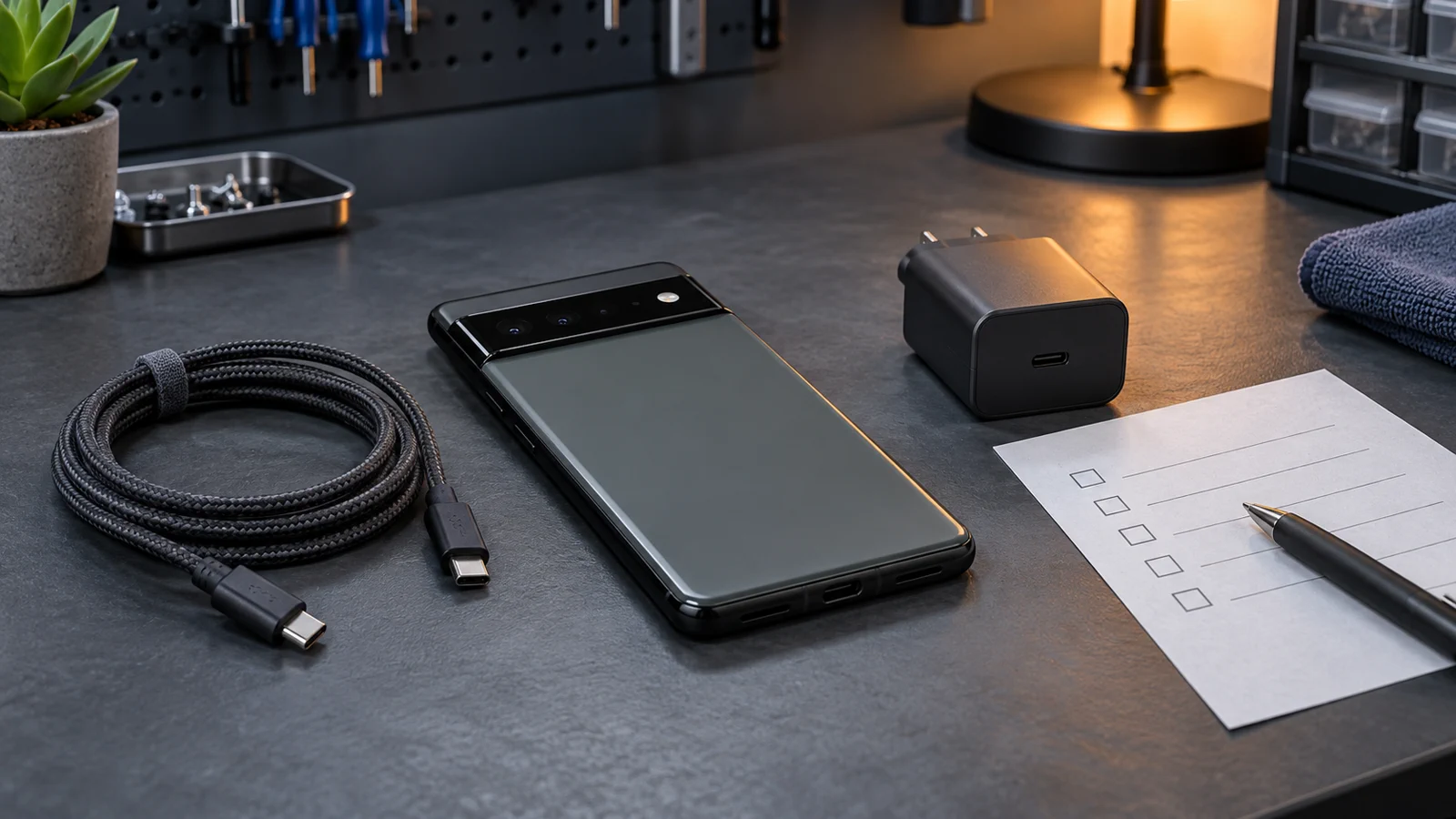
Remove a case or accessory only if it blocks the plug. Connect one known-good USB-C cable and compatible power adapter to a working wall outlet. Keep the phone on a stable, cool surface. Do not use a laptop port as the main comparison when a wall adapter is available.
Google's current instructions use a 10-minute charging check for a phone with a very low battery. Watch for a battery icon, red light, vibration, charging estimate, or percentage change. Leave the setup still. Reconnecting the cable every minute makes the result harder to read.
Give a fully drained Pixel more time
A fully drained battery is a separate case. Google says a Pixel that has been off for a long time may show no icon, vibration, or display response for up to 25 minutes while plugged in. Use the same known-good power chain for that wait.
If the phone remains blank, call it from another phone or use Google's Find Hub only when the owner is already signed in and authorized. A ringing phone with a blank screen points toward a display problem rather than a no-power result. It still does not identify the failed part.
Check heat and Charging optimization
A warm Pixel can slow or pause charging to protect the battery. Move it out of direct sun, stop demanding apps, and let it cool at room temperature. Do not place it in a refrigerator or freezer and do not blow compressed air into the port.
If the phone charges but pauses near 80% or finishes later than expected, check Battery settings for Charging optimization. Adaptive Charging or an 80% limit can explain a repeatable stop. Do not disable a useful battery setting unless you need one controlled comparison and understand the tradeoff.
Use wireless charging only on a supported model
Wireless support and charger compatibility vary by Pixel model. Pixel 3a, Pixel 4a, Pixel 4a 5G, Pixel 5a, and Pixel 6a do not support wireless charging. Pixel 10 and later models have separate Qi2 rules, and Pixel 10a is excluded from Qi2 support.
Confirm the exact model before using a pad as evidence. Remove a thick or magnetic case when it may block alignment, center the phone on a compatible charger, and compare once. Wired success with wireless failure keeps the pad, alignment, case, compatibility, and wireless hardware in scope. It does not prove a coil failure.
Handle a liquid or debris warning safely
Unplug the adapter from the wall, let the phone cool if needed, and disconnect the cable. If the phone or cable is wet, turn off the phone and leave it on a flat surface to dry at room temperature.
Google says not to put anything into the USB-C port. Do not scrape, swab, spray, or blow it out. If the port looks burned, melted, corroded, loose, or physically deformed, stop. Repeatedly reconnecting power can make damage worse.
Read the controlled result
| Result | What remains in scope | Next step |
|---|---|---|
| The Pixel charges with the known-good setup | The first cable, adapter, outlet, or connection remains suspect. | Replace or retire only the item that failed the comparison. |
| The phone charges after cooling | Temperature or workload affected the charging rate. | Keep it cool and watch for a repeatable heat trigger. |
| The phone stops at the configured limit | Charging optimization explains the result. | Keep the setting unless a full charge is needed for a specific reason. |
| Supported wireless charging works but USB-C does not | The wired accessory or USB-C connection remains in scope. | Stop port probing and preserve the comparison for service. |
| USB-C works but supported wireless charging does not | Compatibility, alignment, the case, the pad, or phone hardware remains in scope. | Use the working wired path and stop after one compatible wireless test. |
| Neither path changes an intact, dry phone | A phone-side fault is possible but not proven. | Arrange support or inspection without naming a part. |
Know when the home check is finished
Stop after one compatible power-chain test, the correct wait for the visible state, a heat and optimization check, and one model-supported wireless comparison. Do not use a factory reset as an early charging test. Google's manual reset erases data and does not repair physical damage.
A loose or angle-dependent plug belongs with inspection. The loose charging-port guide shows the evidence pattern without claiming that a Pixel has the same fault.
Ask whether local inspection is available
Budget Repair can review the record and tell you whether the exact Pixel model is eligible for local inspection. Request an inspection estimate with the model, charge state, cable and adapter tested, wired and supported wireless results, temperature, warning text, and any liquid or impact history.
Inspection comes before any claim about the battery, port, coil, board, price, turnaround, data recovery, or repair result. The Budget Repair blog has more safe device checks.
Editorial sources
Checked October 10, 2026 against Google's Pixel charging and power checklist, model-specific wired and wireless charging guide, and liquid, debris, heat, and port-safety instructions. Google supplies the compatible power test, 10-minute check, fully drained 25-minute limit, model rules, and repair boundary. Recent owner reports were used only to confirm symptom wording. They do not prove an update defect or failed part. Budget Repair added the state table, one-variable comparison, and stop conditions. Budget Repair is not affiliated with Google.