
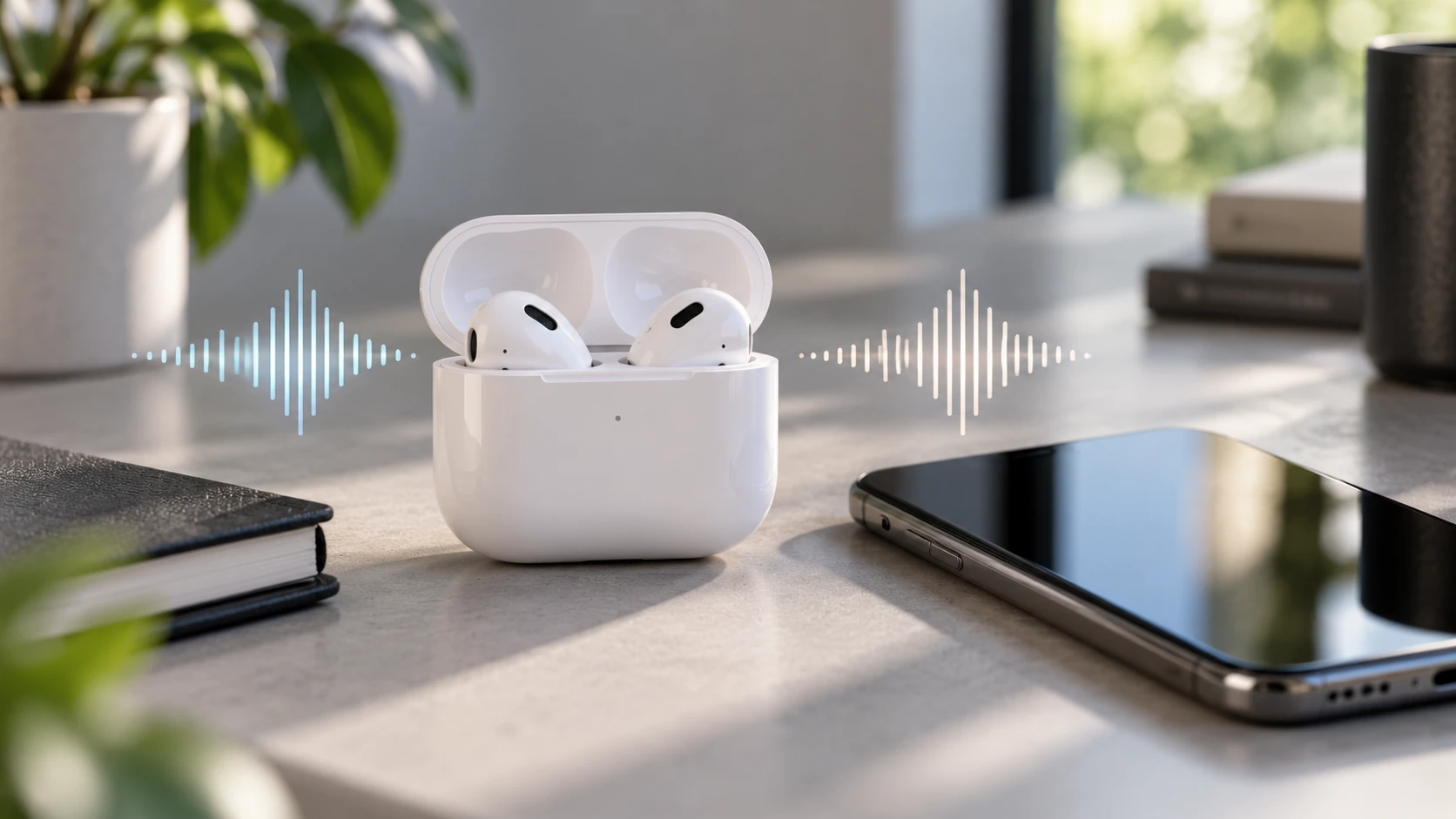
Confirm the exact AirPods model
AirPods, AirPods Pro, and AirPods Max do not share the same cleaning, reset, or microphone layout. A suggestion written for one generation may not fit another. Check the model in the paired device settings, the case or product record, and the original purchase information when available. Do not use the Max steps for an in-ear AirPod or assume that a newer case follows an older reset sequence.
Write down the model, the earbud that fails, the host device, the app, and whether the problem began after moisture, a drop, a software change, or a pairing change. This small record keeps a host microphone problem from being mistaken for an AirPod fault.
Make one repeatable microphone test
Use the same short phrase for each test. Start with a local voice memo or another recording saved on the host, not a call where network processing can hide the result. Record with both earbuds, then with the left earbud alone, then with the right. Play the clips through a different speaker or headphones so the playback path does not decide whether the recording exists.
| Result | What it tells you | Next step |
|---|---|---|
| One earbud is quiet in every test | The problem follows that earbud more than the app. | Check the selected microphone and inspect the mesh safely. |
| Both earbuds fail in one app | The app permission, input choice, or app processing may be involved. | Test a local recording and another app before resetting the AirPods. |
| Both earbuds fail on one host only | The host input path, Bluetooth profile, or permission may be involved. | Test the same AirPods on another supported host if one is available. |
| The recording is clear but calls are not | The call app, network path, or call profile may be changing the result. | Compare the call app's input choice with the local recording. |
On an Apple host that exposes the control, open the AirPods settings and find Microphone. Test Automatic, Always Left, and Always Right one at a time, making the same short recording after each change. Apple documents these choices as a way to select which AirPod microphone is used. Restore Automatic after the comparison unless your use case requires a fixed side.
Check the app and host before blaming the earbud
Check that the app has microphone permission and that it is using the AirPods input rather than the phone, tablet, or computer microphone. Close one competing call or recording app, reconnect once, and repeat the same local test. If the host has a built-in microphone, cover nothing and do not use it as an unmarked substitute. The point is to know which input produced each clip.
A Bluetooth connection can be good enough for listening while the microphone path is wrong. That difference is useful evidence, not proof of a damaged earbud. Record the app name and host operating system with the result so a repair shop or Apple support can reproduce the boundary.
Clean only within Apple's limits
If the failure stays with one earbud and the mesh looks blocked, use Apple's current cleaning guide for the exact AirPods model. Work on a dry, well-lit surface. Follow the guide's material and tool limits, and let the earbud remain dry before you pair it or put it into the case.
Do not scrape the mesh with a pin, brush adhesive into the opening, spray cleaner into the earbud, rinse it, or use compressed air unless the current model-specific Apple instructions explicitly allow a step. A blocked grille and a liquid-damaged microphone can look similar from the outside. Cleaning cannot prove that the microphone itself is the failed part.
Reset once, then stop repeating the test
Apple's reset sequence varies by model. Use the current Apple instructions for the exact product, follow the pairing prompts once, and repeat the same local recording. If the steps require forgetting the device, understand that this removes the pairing from the host and may affect other devices using the same account. Do not keep cycling resets, firmware guesses, or random Bluetooth changes after the result is unchanged.
If the microphones work on another host, keep the AirPods paired there only long enough to document the difference. If the same earbud remains quiet across hosts after a model-correct clean and reset, save the recordings and stop trying to prove the failure with more aggressive handling.
Choose a service route without guessing the part
Apple's repair page is the right place to check current service choices, coverage, and model-specific options. Keep the model, serial or device information private, and share only what a service provider needs. A repair decision may depend on inspection, battery condition, liquid history, and available parts. A microphone symptom alone does not promise a board, mesh, battery, or earbud replacement.
Budget Repair can review an electronics-service request, but it does not speak for Apple and cannot promise that AirPods are accepted, repairable, economically sensible, or covered. If you ask about an inspection, include the exact model, the failed side, the apps and hosts tested, the cleaning or reset already done, and any drop or liquid history. Use the quote form or the repair services page to ask what can be evaluated before sending the earbuds.
For a phone or computer microphone that fails without the AirPods, use the phone microphone guide. Keeping that symptom separate prevents an AirPods reset from hiding a host-device problem.
Editorial sources
Checked October 16, 2026 against Apple's current one-side AirPods troubleshooting, microphone selection settings, and repair and service route. Apple supplies the model, test, cleaning, setting, reset, coverage, and service boundaries. The review also checked current owner reports and support discussions about AirPods microphone behavior on computers. Those reports are useful for search language and possible patterns, but they do not prove cause, frequency, eligibility, or repair outcome. Budget Repair added the repeatable comparison, safety stops, internal routes, and local service boundary. Budget Repair is not affiliated with Apple.