
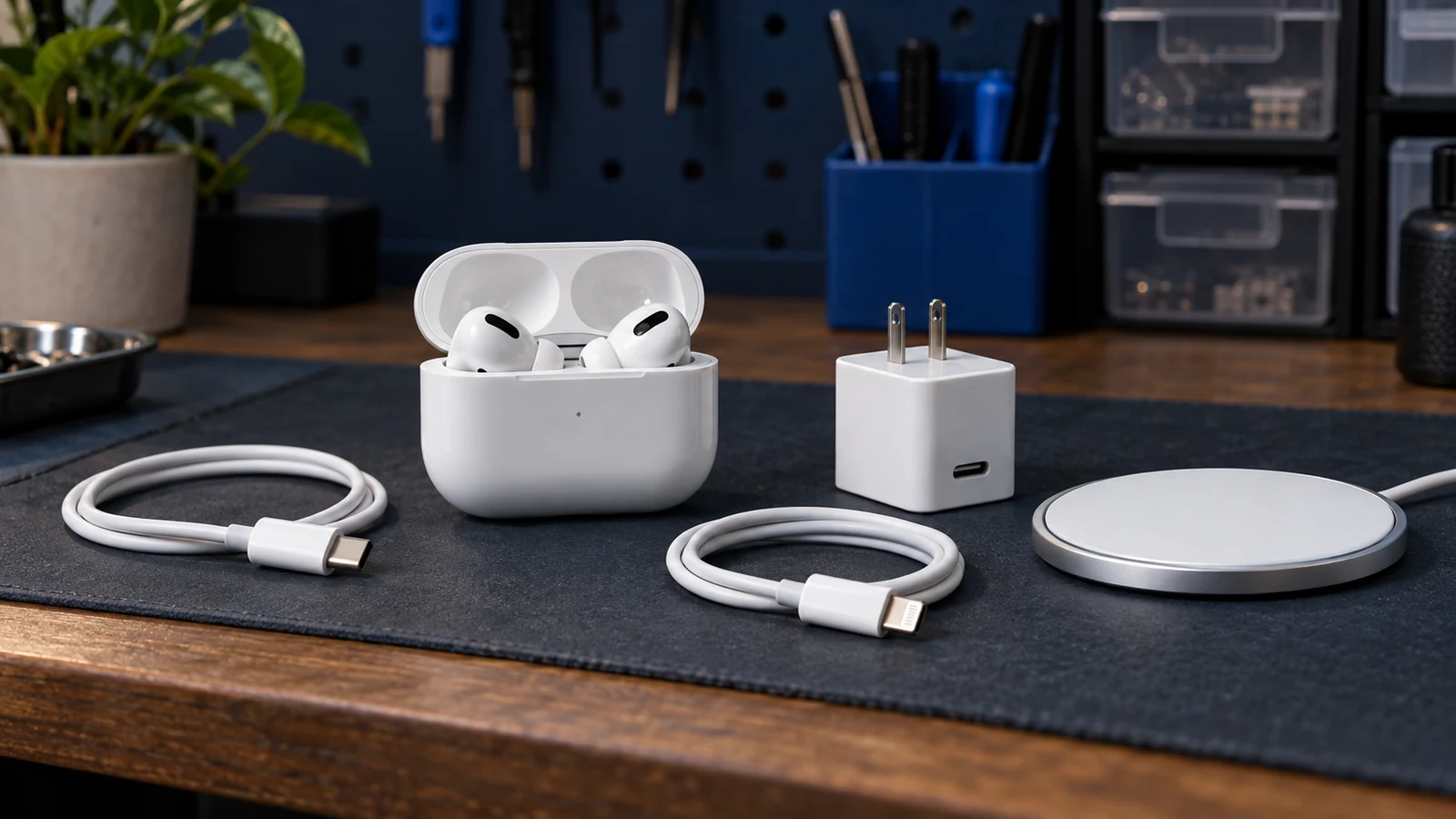
Identify the earbuds and charging case
Start with the model number, connector, and status-light location. Apple lists USB-C and Lightning cases, and only some cases support Qi, MagSafe, or Apple Watch charging. A wireless test tells you nothing about a wired-only case.
Apple's current United States model page lists the AirPods 5 wired Charging Case as A3530. The AirPods 5 Wireless Charging Case is A3529. Both use USB-C, but only A3529 supports Apple Watch and Qi-certified wireless chargers. Apple also says the two AirPods 5 case and earbud families are not interchangeable.
If one earbud will not charge while the case itself accepts power, use the one AirPod not charging guide. AirPods Max uses a different charging path and belongs in the AirPods Max charging guide.
Record what the case does before changing it
Note the case battery reading when it appears, the status-light color, whether the light turns on, whether the earbuds gain charge, and whether the case works by cable, wireless charging, both, or neither. Record any recent drop, liquid, cable change, new charger, or long period without use.
Keep the symptoms separate. Earbuds that gain charge while the case battery stays flat point to a different problem than a case that does not power the earbuds at all. A missing light can mean no input, a deeply discharged case, a reporting problem, or damaged hardware. It does not name the failed part.
Stop for heat, liquid, swelling, or damage
Disconnect the case if it is wet, swollen, cracked, open, smoking, sparking, giving off an unusual odor, or becoming unusually hot. Stop if the cable or adapter has exposed conductors, bent contacts, heat damage, or a loose connector.
Do not keep charging a suspect lithium-ion battery to see whether it recovers. Do not bend, squeeze, puncture, freeze, or heat the case. Place it away from combustible material and arrange trained inspection.
Run one 15-minute wired charging test
Put both AirPods in the case and close the lid. Connect the correct USB-C or Lightning cable firmly to the case and a compatible USB power adapter. Plug the adapter into a known working wall outlet. Leave the setup still for at least 15 minutes.
Check the case battery and status light again. If the case charges with one known working cable and adapter but not the original setup, keep that result. Replace only the item that failed the controlled comparison. Do not keep cycling through chargers once the difference is clear.
Test wireless charging only when the case supports it
Place a compatible wireless case on a powered Qi-certified charger with the status light facing up. Align the case with the center of the charger. Apple says the light should appear for several seconds and can turn off while charging continues.
If the light does not appear, reposition the case once. Then use the wired path. Wireless failure with normal wired charging keeps the charger, alignment, case cover, and wireless hardware in scope. A case that fails both paths needs a different next step.
Check status instead of watching the light alone
Use the paired iPhone, iPad, or Mac when available to check the AirPods and case charge status. The light does not need to stay on for the case to keep charging wirelessly. A battery reading that rises is stronger evidence than the light alone.
If the reading appears frozen, note the time and percentage. Do not repeatedly open the lid, reconnect Bluetooth, or reset the AirPods during the 15-minute test. Too many changes erase the comparison.
Clean only within Apple's limit
Inspect the charging-port opening under good light. Apple permits a clean, dry, soft-bristled brush for visible debris. Brush gently at the opening. Apple says not to put anything into the charging ports and not to get liquid in them.
Wipe the outside of the case with a soft, dry, lint-free cloth and let the case dry before charging. Do not use a pin, toothpick, metal tool, wet swab, solvent, or compressed air in the port.
Use one reset for the exact AirPods model
A reset is reasonable only after the intact, dry case has completed the power test. Apple uses different reset controls for different generations. AirPods 1 through 3 and AirPods Pro 1 and 2 use the setup button on the back. AirPods 4, AirPods 5, and AirPods Pro 3 use a timed three-stage double-tap sequence on the front of the case.
Open Apple's current reset page and follow the section for the exact model. A full reset clears custom AirPods settings and requires reconnection. Run it once. A reset cannot repair a damaged port, worn battery, failed charging circuit, liquid damage, or impact damage.
Read the result without guessing the failed part
| Result | What it narrows | Next step |
|---|---|---|
| The case charges with a known working cable and adapter | The first cable, adapter, or connection remains in scope. | Replace or retire only the failed accessory. |
| Wired charging works, wireless charging does not | The wireless charger, alignment, cover, or wireless side of the case remains in scope. | Keep the wired result and stop after one compatible wireless comparison. |
| The earbuds charge, but the case battery does not rise | The case can deliver some power, but its own charging or reporting path is not normal. | Preserve the battery and light record for service. |
| The case works only while plugged in | The case does not hold or report usable power normally. | Stop repeated resets and request inspection. |
| Neither wired nor supported wireless charging changes the case | The symptom follows the case across two power paths. | Arrange service without naming the internal cause. |
Know when the home test is finished
Stop after the model check, one 15-minute wired test, one supported wireless comparison, the dry-brush limit, and one correct reset. More chargers, repeated resets, impact, or overnight testing will not identify an internal fault safely.
Apple can inspect the AirPods and case and then explain repair or replacement options. Cost and coverage depend on the exact model, condition, location, inspection, and plan. Back up any useful notes before service.
Ask whether a local inspection is available
Budget Repair can review your test record and tell you whether the exact case is eligible for local inspection. Contact the shop before drop-off or shipment. Include the case model, connector, wired result, wireless result when supported, battery reading, status light, and any drop or liquid history.
Inspection comes before any statement about the battery, port, coil, board, price, turnaround, warranty, or result. The repair services page explains the general service process, and the Budget Repair blog has more device checks.
Editorial sources
Checked October 9, 2026 against Apple's AirPods charging guidance, case and model list, model-specific reset instructions, cleaning limits, and service page. Apple supplies the 15-minute charge check, wired and wireless boundaries, current case identifiers, reset controls, port-cleaning limit, and inspection path. Current owner reports were used only to confirm symptom language and identify unsafe impact or tool advice to exclude. Budget Repair added the short evidence record and stop conditions. No source proves a failed internal part or repair result from the symptom alone. Budget Repair is not affiliated with Apple.